How to Run Ollama on Android: Complete Guide 2026
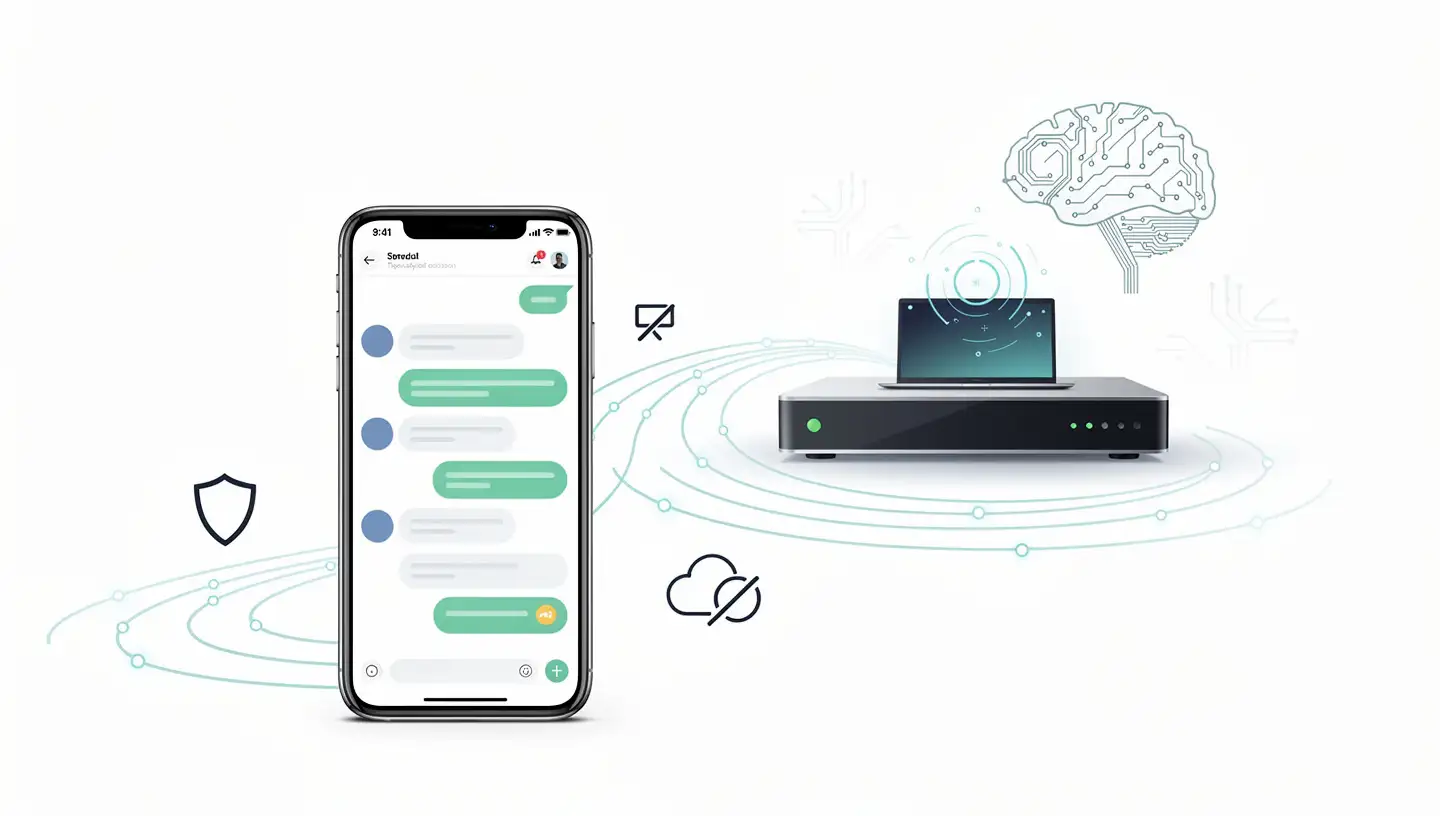
Running a local LLM (Large Language Model) on your Android phone means having a fully private AI assistant that works without internet, sends zero data to any server, and costs nothing to run.
This guide covers everything you need to know about running Ollama on Android — from what Ollama actually is, to choosing the right model, to connecting it to a mobile chat app.
What Is Ollama?
Ollama is an open-source tool that lets you run AI models locally on your Mac, Linux, or Windows machine. It downloads open-source models (LLaMA, Mistral, Gemma, Qwen, Phi, DeepSeek, and dozens more) and runs them entirely on your hardware.
On its own, Ollama runs on desktop operating systems. But you can install it on a local server (like a spare laptop or mini PC on your network) and connect to it from an Android phone — giving you a mobile AI experience with zero cloud dependency.
Why Run Ollama on Android?
Here's what you gain by going local with Ollama:
100% privacy: Your conversations never leave your network. Not even a byte.
Zero API costs: After the initial model download, it's free forever.
Works offline: No internet required. Works on a plane, underground, anywhere.
No data logging: No company sees your prompts, your files, or your chat history.
Customizable models: Run any GGUF-compatible model from Hugging Face.
And in 2026, local models are surprisingly capable. Gemma 3n, Qwen 3, and Llama 3.1 at 7-8 billion parameters run well on mid-range Android devices connected to a local Ollama server.
Method 1: Ollama on a Local Network (Recommended)
This is the most practical setup for most people.
What You Need
A computer (Mac, Linux, or Windows) to run Ollama
An Android phone on the same Wi-Fi network
The Chat with AI app (free on Google Play)
Step 1: Install Ollama on Your Computer
Go to ollama.com/download
Download the installer for your OS (Mac, Linux, or Windows)
Install and open Ollama
Open a terminal and run:
ollama pull llama3.2This downloads the Llama 3.2 model (about 2GB). You only need to do this once.
Step 2: Start the Ollama Server
By default, Ollama runs a local API on port 11434. To allow connections from other devices on your network:
On Mac/Linux:
export OLLAMA_HOST=0.0.0.0
ollama serve
On Windows:Set the environment variable OLLAMA_HOST=0.0.0.0 in System Properties → Environment Variables, then run ollama serve.
On the same machine you can just run ollama serve without the export.
Step 3: Find Your Computer's Local IP Address
On Mac/Linux:
ifconfig | grep "inet "On Windows:
ipconfigLook for the IPv4 address (usually something like 192.168.1.100).
Step 4: Connect from Android via Chat with AI
Install Chat with AI on your Android phone
Open the app
Go to Settings → Add Provider → Ollama
Enter your computer's local IP address (e.g.,
http://192.168.1.100:11434)Select your model from the dropdown
Tap Save
You're now running a local LLM on your Android phone, connected to Ollama on your computer.
Step 5: Download Additional Models
Back on your Ollama computer, you can pull more models:
ollama pull mistral          # ~4GB — fast, capable
ollama pull qwen2.5:7b       # ~5GB — excellent for coding
ollama pull gemma3n:4b       # ~3GB — Google's model, good quality
ollama pull phi4:mini        # ~2GB — Microsoft's model, very fast
ollama pull deepseek-r1:7b   # ~5GB — strong reasoning
Switch between models in Chat with AI's dropdown menu. All of them run locally.
Method 2: Ollama on a Cloud Server (For Advanced Users)
If you want to access your Ollama server from anywhere (not just your home network), you can run Ollama on a cloud VPS:
Step 1: Rent a GPU VPS
Services like RunPod, Vast.ai, or Massed Compute offer GPU instances starting at $0.20/hour. For Ollama, a 24GB VRAM GPU (like an A4000 or A5000) runs Llama 3.1 70B at good speeds.
Step 2: Install Ollama
SSH into your VPS and install Ollama:
curl -fsSL https://ollama.com/install.sh | shPull your desired model:
ollama pull llama3.1:70bStep 3: Start the Server
OLLAMA_HOST=0.0.0.0 ollama serveStep 4: Connect Securely
You'll need to expose the port or use a tunnel. For security, use:
Cloudflare Tunnel (free, secure)
Tailscale (free for personal use) — creates a VPN between your devices
SSH port forwarding (advanced)
Warning: Exposing Ollama directly to the internet without authentication is a security risk. Always use a VPN, Cloudflare Tunnel, or SSH tunnel.
Choosing the Right Model
Model selection depends on your hardware. Here's a practical guide:
Model | Size | RAM/VRAM Needed | Speed | Best For |
|---|---|---|---|---|
gemma3n:4b | ~3GB | 6GB+ RAM on device | Fast | General chat, fast responses |
llama3.2:3b | ~2GB | 4GB+ RAM | Very fast | Casual use, quick tasks |
mistral:7b | ~4GB | 8GB VRAM or 16GB RAM | Medium | Balanced quality and speed |
qwen2.5:7b | ~5GB | 8GB VRAM | Medium | Coding, technical tasks |
phi4:mini | ~2GB | 4GB+ RAM | Fast | Lightweight, fast |
deepseek-r1:7b | ~5GB | 8GB VRAM | Medium | Reasoning, problem-solving |
For most users on a modern phone + decent laptop: start with Llama 3.2 3B or Gemma 3n 4B. They're fast, high quality, and run on modest hardware.
Model Recommendations by Hardware
Low-End Setup (8GB RAM laptop, modest phone)
→ llama3.2:3b or gemma3n:4b→ Chatty, responsive, decent quality
Mid-Range Setup (16GB RAM, decent GPU)
→ mistral:7b or qwen2.5:7b→ Significantly better reasoning, moderate speed
High-End Setup (24GB+ VRAM, RTX 3080 or better)
→ llama3.1:70b or deepseek-r1:70b→ Frontier-class quality, slower generation
Troubleshooting Common Issues
"Connection refused" error
Make sure Ollama is running (
ollama servein terminal)Check that your phone and computer are on the same network
Verify the IP address is correct (include
http://and the port:11434)
Ollama models are slow
Use a smaller model (3B parameters instead of 70B)
For GPU acceleration, Ollama automatically uses CUDA on NVIDIA GPUs. No extra configuration needed.
On CPU only, smaller models (3B-4B) are the practical limit for real-time chat.
Phone can't connect from outside the house
Set up Tailscale (free) on both devices for a secure VPN
This gives you access to your local Ollama from anywhere in the world
Which models to delete if running out of disk space?
ollama list        # shows all installed models
ollama rm <model>  # removes a specific model
The Privacy Benefit in Practice
Here's what "100% local" actually means with this setup:
Your prompts → your computer's Ollama → your phone
No OpenAI servers. No Anthropic. No Google.
No API calls logged. No training data collected.
Your chat history stays on your hard drive.
Even if someone intercepts your network traffic, it's just local Ethernet frames between your devices.
This is categorically different from "we promise not to use your data." Physically, there is nowhere for the data to go.
FAQ
Does Ollama work on Android natively?Not directly — Ollama doesn't have an Android app. The solution is to run Ollama on a computer on your network and connect to it from Chat with AI on your Android phone.
Can I run Ollama on a Raspberry Pi?Yes, but with limitations. A Raspberry Pi 5 with 8GB RAM can run llama3.2:1b or phi4:mini at very low speeds. For practical use, a laptop or mini PC is much better.
How much internet bandwidth does this use?Zero, once the model is downloaded. The connection between your phone and Ollama is entirely local network. Your internet connection isn't touched.
Can multiple phones connect to one Ollama server?Yes. As long as they're on the same network as the Ollama server, multiple devices can connect simultaneously.
What's the difference between Ollama and a local API like LMStudio?Ollama is a command-line tool with a local API. LMStudio is a GUI application that's more user-friendly but less flexible. Both work with Chat with AI. Ollama has a larger model library and is more widely used in the developer community.
Get Started
Install Ollama on your Mac or PC
Run
ollama pull llama3.2in terminalRun
ollama serveInstall Chat with AI on your Android phone
Add Ollama as a provider, enter your computer's local IP
Start chatting privately